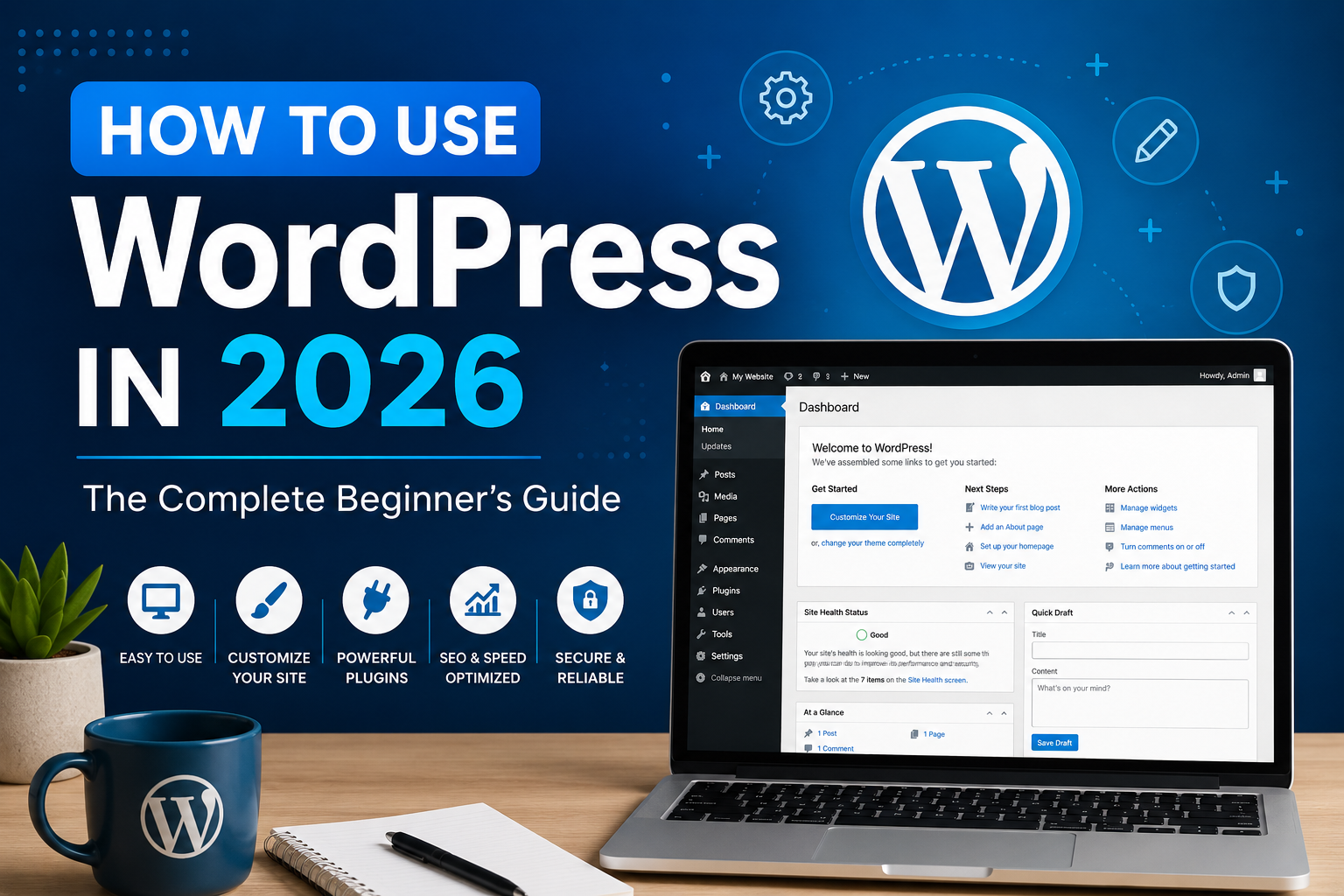
WordPress remains the world’s most popular content management system (CMS), powering more than 40% of all websites. Whether you’re building a personal blog, business website, portfolio, online store, or membership platform, WordPress offers everything you need to create a professional website without advanced coding skills.
This guide walks you through everything you need to know about using WordPress in 2026, from installation to publishing your first website.
What Is WordPress?
WordPress is a free, open-source content management system (CMS) that lets you build and manage websites through an easy-to-use dashboard.
With WordPress, you can create:
- Business websites
- Personal blogs
- E-commerce stores
- Portfolio websites
- News websites
- Educational websites
- Membership websites
- Forums
- Booking websites
- Landing pages
Its flexibility and massive ecosystem of themes and plugins make it suitable for beginners and professionals alike.
[excwst_telegram]
[excwst_telegram style=”card”]
[excwst_telegram_accounts]
Step 1: Choose a Domain Name
Your domain name is your website’s online address.
Examples:
- mybusiness.com
- myblog.com
- yourbrand.com
Tips for choosing a domain:
- Keep it short
- Make it memorable
- Avoid numbers and hyphens
- Use relevant keywords if possible
Step 2: Buy Web Hosting
A hosting provider stores your website files and makes them accessible on the internet.
Look for hosting that offers:
- One-click WordPress installation
- Free SSL certificate
- Daily backups
- SSD or NVMe storage
- CDN support
- Good customer support
Step 3: Install WordPress
Most hosting providers allow one-click installation.
The installation usually requires:
- Website name
- Admin username
- Password
- Email address
Once installed, you can log in by visiting:
yourdomain.com/wp-admin
Enter your username and password to access the dashboard.
Step 4: Understand the WordPress Dashboard
After logging in, you’ll see the WordPress Dashboard.
Important sections include:
Posts
Used for blogs and news articles.
Pages
Used for permanent pages like:
- Home
- About
- Contact
- Privacy Policy
Media
Stores:
- Images
- Videos
- PDFs
- Documents
Appearance
Manage:
- Themes
- Menus
- Widgets
- Site Editor
Plugins
Install new features for your website.
Users
Manage user accounts and permissions.
Settings
Configure:
- Site title
- Timezone
- Permalinks
- Reading settings
- Discussion settings
Step 5: Install a WordPress Theme
A theme controls the design of your website.
To install:
Appearance → Themes → Add New
Search for a theme and click:
Install
Then click:
Activate
Choose a responsive, lightweight theme for better speed and user experience.
Step 6: Install Essential Plugins
Plugins add new functionality to your website.
Useful plugin categories include:
SEO
Improve search engine visibility.
Security
Protect against malware and attacks.
Backup
Automatically back up your website.
Caching
Speed up page loading.
Image Optimization
Compress images without reducing quality.
Contact Forms
Allow visitors to send inquiries.
Only install plugins you actually need to keep your website fast and secure.
Step 7: Customize Your Website
Navigate to:
Appearance → Editor (or Customize, depending on your theme)
You can edit:
- Colors
- Fonts
- Header
- Footer
- Logo
- Navigation menu
- Homepage layout
Many modern themes support drag-and-drop editing or Full Site Editing (FSE).
Step 8: Create Important Pages
Every website should include:
Home
Introduce your website and guide visitors to key content.
About
Tell visitors who you are and what you do.
Contact
Provide a contact form, email, or business information.
Privacy Policy
Explain how user data is collected and handled.
Terms and Conditions
Define the rules for using your website or services.
Step 9: Write Your First Blog Post
Go to:
Posts → Add New
Add:
- Title
- Content
- Images
- Categories
- Tags
Preview your post before publishing.
When everything looks good, click Publish.
Step 10: Optimize for SEO
Search Engine Optimization (SEO) helps your website appear in search results.
Best practices include:
- Use descriptive page titles.
- Write clear meta descriptions.
- Use one H1 heading per page.
- Structure content with H2 and H3 headings.
- Add alt text to images.
- Include internal links to related articles.
- Link to reputable external resources when relevant.
- Keep URLs short and readable.
- Focus on content that answers users’ questions.
Publishing helpful, original content consistently is one of the best ways to improve your visibility.
Step 11: Improve Website Speed
A fast website provides a better user experience.
Ways to improve speed:
- Compress images
- Use browser caching
- Enable a CDN
- Minify CSS and JavaScript
- Remove unused plugins
- Choose quality hosting
- Keep WordPress updated
Regular performance checks can help identify areas for improvement.
Step 12: Secure Your WordPress Website
Security should be a priority.
Recommendations:
- Use strong passwords
- Enable two-factor authentication (2FA)
- Keep WordPress updated
- Update plugins regularly
- Remove unused themes and plugins
- Schedule automatic backups
- Limit login attempts
- Use HTTPS with an SSL certificate
Step 13: Keep WordPress Updated
Regular updates improve:
- Security
- Performance
- Compatibility
- New features
Update:
- WordPress Core
- Plugins
- Themes
Always create a backup before major updates.
Step 14: Learn WordPress Shortcuts
Useful shortcuts include:
- Press Ctrl + K (or Cmd + K on Mac) in the Block Editor to quickly search for and insert blocks.
- Use reusable patterns to speed up page creation.
- Duplicate blocks instead of rebuilding layouts.
- Save drafts regularly while editing.
Learning these small productivity tips can make managing your website much faster.
Common WordPress Mistakes to Avoid
Avoid these common issues:
- Installing too many plugins
- Ignoring updates
- Using weak passwords
- Not creating backups
- Uploading oversized images
- Choosing poor-quality hosting
- Publishing content without proofreading
- Forgetting to optimize for mobile devices
Why Choose WordPress in 2026?
WordPress continues to be a leading platform because it offers:
- Beginner-friendly interface
- Thousands of themes
- Extensive plugin ecosystem
- Strong SEO capabilities
- Flexible customization
- Large community support
- Scalability for small and large websites
- Regular updates and improvements
Whether you’re creating a simple blog or a feature-rich online business, WordPress provides the tools to grow with your needs.
Frequently Asked Questions
Is WordPress free?
Yes. The WordPress software is free and open source, though you’ll typically pay for a domain name and web hosting.
Do I need coding skills?
No. Most websites can be built using themes, blocks, and plugins without writing code.
Is WordPress good for SEO?
Yes. WordPress provides a solid foundation for SEO, and you can further optimize your site with quality content, proper site structure, and SEO plugins.
Can I build an online store?
Yes. You can turn your WordPress website into an e-commerce store using WooCommerce and other commerce plugins.
How often should I update WordPress?
Check for updates regularly and install them after creating a backup. Staying up to date helps keep your site secure and compatible.
Final Thoughts
WordPress remains one of the most powerful and flexible website-building platforms in 2026. By learning the basics, choosing reliable hosting, maintaining your site, and publishing valuable content, you can create a website that is fast, secure, and ready to grow.
Whether your goal is to start a blog, showcase a portfolio, or build an online business, WordPress gives you the freedom to create a professional website without needing advanced technical skills. Focus on producing helpful content, maintaining your site, and continually improving the user experience to achieve long-term success.